• Skip to primary navigation
  • Skip to main content
  • Skip to primary sidebar
  • Skip to footer
  • Home
  • About
    • Contact
    • Privacy Policy
    • Disclosure Policy
    • Terms of Use Agreement for By Claudya
  • The Blog
  • Humor
  • DIY
  • Series
    • Sundays In My City
    • Wednesday Wishes
    • The Flying Chancla Report
  • Family/Familia
  • Recipes

By Claudya

Funny San Francisco Latina Blogger

March 27, 2012 Claudya Martinez

How to Add a Watermark Using Windows Live Writer

I use Windows Live Writer to upload most of my photos for blog posts because it provides an easy and convenient way to add a watermark to all my photos. Not only is it easy, you can also set the watermark to default so you don’t actually have to do it for each individual photo. Live Writer will just remember your preference and do it for you.

Here’s how I do it (I’m assuming you’ve already downloaded Live Writer and are slightly familiar with it, if not don’t worry it’s not hard and it’s free).

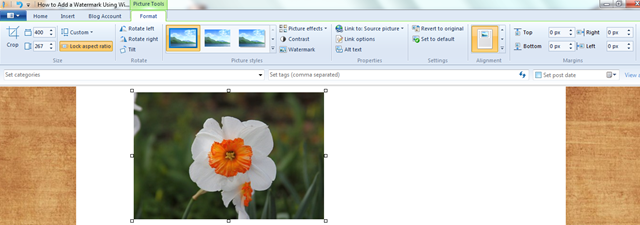
  • When in Live Writer, insert a photo into your post, then select/click on it to bring up the “Picture” ribbon.
Watermark-in-Windows-Live-Writer

The Picture ribbon lets you do all sorts of nifty things to your pictures, but I’m just going to focus on three elements.

Watermark-in-Windows-Live-Writer-Picture-Ribbon

The three areas I’ve marked above let you resize the photo, bring up the watermark options and then set to default.

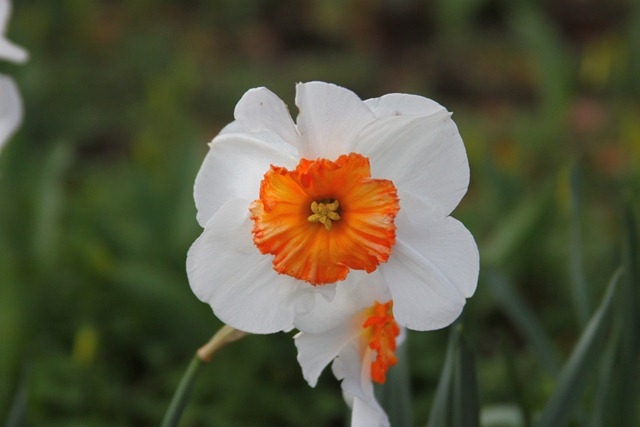
  • Begin by setting the desired size for your photo.
White and orange narcissus

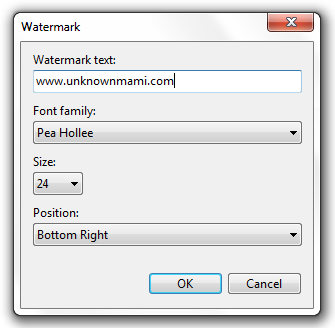
  • Then click on the watermark option. A prompt box will appear.
Watermark-options-in-Windows-Live-Writer

Fill out what you would like the watermark text to say, choose the font and font-size, and position. Once you are done, hit “okay”, and the watermark will be applied to your photo.

  • Great, but if you don’t want to do that for every single photo, there is one last step. Make sure the picture you just watermarked is selected (click on it to select it), on the “Picture” ribbon of Live Writer find the “Set to default” option and click on it. Now every subsequent picture you load in this and any other post on Live Writer will load with the properties you’ve chosen. Tada!

235

You can always make changes to the size, alignment, and framing, but it is nice not to have to fill out the watermark info for every single picture.

Share this:

  • Share on Facebook (Opens in new window) Facebook
  • Share on X (Opens in new window) X
  • Share on Pinterest (Opens in new window) Pinterest

Related Posts:

Filed Under: Tutorial

Reader Interactions

Things I Know Are True
Like Mother, Like Daughter

Comments

  1. blankZulay says

    March 27, 2012 at 6:53 am

    Is that free to download?

    Reply
    • blankunknownmami says

      March 27, 2012 at 11:59 pm

      Yes, it’s free to download.

      Visit me at: http://www.unknownmami.com.

      Reply
  2. blankMaggie says

    March 27, 2012 at 7:02 am

    Thank You! I’m going to have to check this out.

    Reply
  3. blanksamijoe says

    March 27, 2012 at 9:28 am

    Thanks for the tutorial!  This seems much easier than using Photobucket!

    Reply
    • blankunknownmami says

      March 28, 2012 at 12:15 am

      I love it because once you are done you can just upload it to your blog and you can set Live Writer to have your template so you can see exactly what it will look like on your blog.

      Reply
  4. blankAutismWonderland says

    March 27, 2012 at 9:37 am

    So cool!!  Thank you so much for sharing!

    Reply
  5. blankMamamyya3 says

    March 27, 2012 at 11:25 am

    This is AWESOME!! I am so going tho attempt this!! Thank you 🙂

    Reply
    • blankunknownmami says

      March 28, 2012 at 1:25 am

      Oh good, I’m glad it is useful. I almost didn’t post it.

      Reply
  6. blankLeovi Leovi says

    March 27, 2012 at 1:45 pm

    Interesting proposal very useful

    Reply
  7. blankMamatim says

    March 27, 2012 at 7:48 pm

    I’ve been wanting to learn this, thanx dearie, U’re an angel! If I have questions, I’ll be back :))
    ~ timmohdali.blogspot.com ~

    Reply
  8. blankMy Inner Chick says

    March 28, 2012 at 6:02 am

    I usually copy and paste.

    I’m such a dork 😉

    Thank You.  x

    Reply
  9. blankdeborahpucci says

    March 28, 2012 at 1:22 pm

    Thank you. I am going to star this post and give it a try. I do not use Live Writer. I am not a big person on change. I have never changed to any new systems.

    Reply
  10. blankJai says

    March 31, 2012 at 5:53 am

    You ate awesome. I needed a visual to get this done. Thanks!

    Reply
  11. blankKevin Mote says

    May 4, 2012 at 1:46 pm

    I love WLW too, but its days may be numbered. If you want to support it, please sign the “Save Windows Live Writer” petition created by software developer, Scott Lovegrove: http://www.petitionbuzz.com/petitions/dontkillwlw

    Reply
  12. blankMindy says

    November 15, 2013 at 7:42 am

    I’ve been blogging with LIVE WRITER and have even blogged tutorials, but I didn’t know about this default setting! Thank you! Great tutorial.

    Reply
  13. blankmomof3 says

    February 28, 2015 at 1:03 pm

    do you have this for the updated livewriter, I miss my old version

    Reply
    • blankClaudya Martinez says

      February 28, 2015 at 1:30 pm

      I had it programmed and when I updated it stayed the same for me. You can still upload your pics, set the size you want, put in the watermark and size of watermark that you want and then hit set as default under the format tab.

      Visit me at: http://www.unknownmami.com.

      Reply

Leave a ReplyCancel reply

This site uses Akismet to reduce spam. Learn how your comment data is processed.

Primary Sidebar

About Me

blankWelcome, I am your host Claudya Martinez. I'm a bilingual Latina raising multicultural kids in San Francisco. WARNING: I have a sense of humor that I'm not afraid to use. Hang out, stay un poco and let's get to know each other. Read More…

Let’s get social!

  • Instagram
  • X
  • Facebook
  • Pinterest

Search this site:

Top Posts & Pages

52 Week Money Challenge Forward and Reverse (Printable)
The Time My Mom Wore a See-Through Bathing Suit
101 Ways to Praise a Bilingual (Spanish/English) Child {Printable}
15 Mexican Life Hacks Everyone Should Know
Easiest Slow Cooker Steel Cut Oatmeal Recipe EVER
DIY Closet Door Spray Paint Update
Salma Hayek and Her Naked Butt Are in a Movie
Danny Trejo Saves a Child & We Should All Be Like Trejo
Just Chillin’
11 Coffee Memes That Are Almost as Good as Actual Coffee

Archives

Copyright Info

© All Rights Reserved
No portion of this site may be reproduced, retransmitted, built upon or used without the express written consent of the author.

Footer

Recent Posts

  • Tamal Memes Because ‘Tis the Season for Tamales
  • How a DNA Test Made Me Question My Latinidad
  • 11 Problems Bilingual People Have
  • 5 Steps to Find the Best Amazon Prime Day Deals Specifically for You
  • How to Make DIY Tin Can Lanterns
Privacy & Cookies: This site uses cookies. By continuing to use this website, you agree to their use.

To find out more, including how to control cookies, see here: Cookie Policy

Archives

Looking for something?

Follow Along on Social Media

  • Instagram
  • X
  • Facebook
  • Pinterest

© By Claudya